Setting up fluorescence compensation correctly can be a challenging task. As the number of fluorochromes increases, compensation becomes more important and more difficult. Enter V-Comp™ - a stand-alone app that makes it easy to set up compensation for each of your panels, and do it automatically and objectively.
With a set of single-color controls and an unstained control, V-Comp™ can generate a spill matrix without any user intervention. Select the measurements to compensate, assign the controls to the measurements, and V-Comp creates the perfect compensation for your data.
WinList is tightly integrated with the V-Comp app. It knows how to launch the app so that you can create a new compensation setup. It knows where to find your V-Comp setups. And it knows how to read those compensation setups so that it can directly apply V-Comp compensation from within WinList.
Let's walk through how this system works.
You'll need V-Comp 1.0 installed on your computer to perform these steps.
Launching the V-Comp App
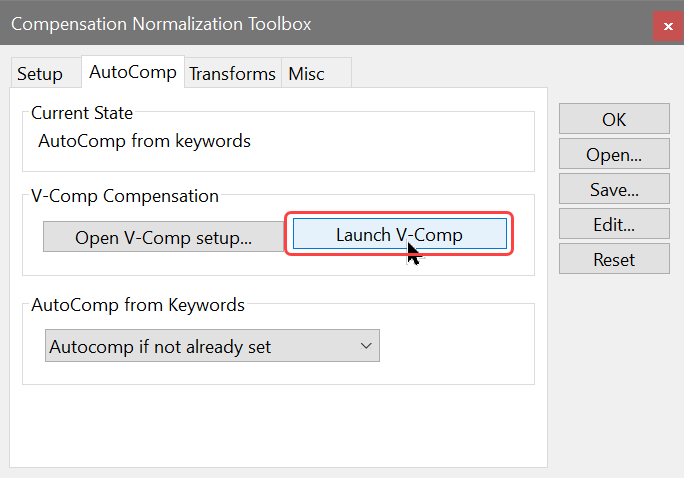
Suppose that we have an FCS file open in WinList and we want to setup a V-Comp compensation for it. We display the Compensation Toolbox by clicking the Comp button on the Home tab of the ribbon, click the AutoComp tab, and click the Launch V-Comp button.
WinList will launch the V-Comp app.
Working with the V-Comp app
The V-Comp app allows you to create new compensation setups as well as edit existing ones. You can review the full user guide for V-Comp to see all of its options. Here, we'll just give a quick overview of how easy it is to create a setup.
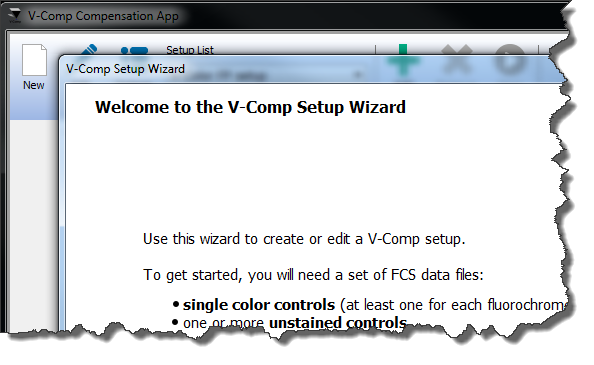
You create a new setup by clicking the New button on the ribbon bar, and working through the Setup Wizard.
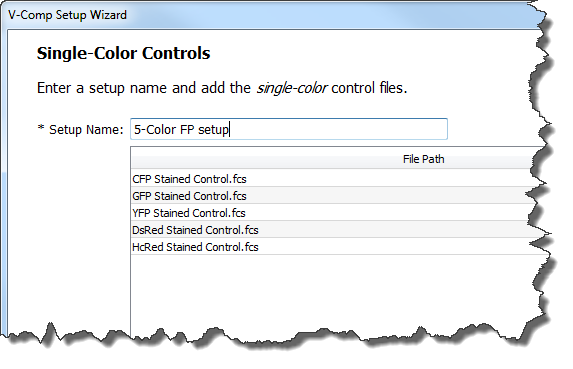
The wizard prompts you for single-color control files, as well as an unstained control file.
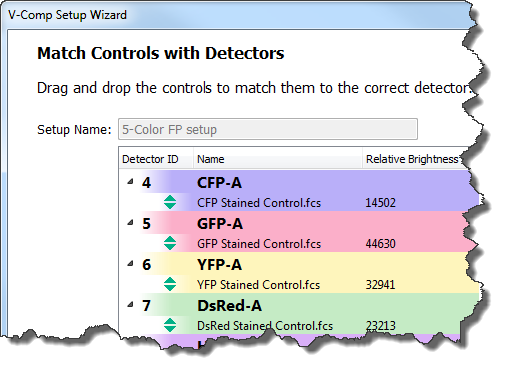
You identify the measurements that you want to compensate and match them up with the single-color controls.
That's about it! V-Comp will take the setup info and crunch the numbers to figure out an optimal compensation setup for the controls. You can go ahead and directly apply that setup to any files that are created with the same panel. You can also tell WinList to use the setup file for that panel.
Using a V-Comp setup in WinList
So, back in WinList, we have a file opened and we want to apply a V-Comp setup to it. How do we do that? Easy.
On the AutoComp tab of the Compensation Toolbox, we click the Open V-Comp setup button.
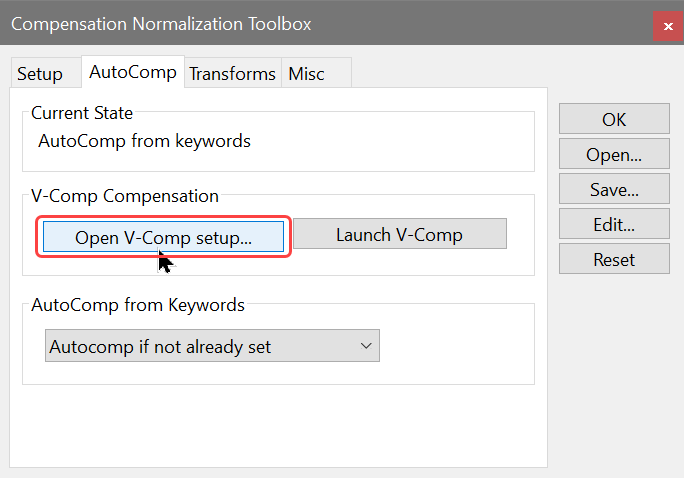
WinList will display the Open Compensation File dialog show V-Comp setups. Find the one that relates to the FCS file you have loaded, and open it.
The V-Comp setup will be read by WinList and used to set up the crossover values for compensation. WinList will enable the compensation for the correct parameters and turn compensation on.
Note that WinList will turn off "AutoComp from Keywords" when you use a V-Comp setup. This ensures that the compensation in WinList will not be changed by keyword compensation from an FCS file that you read in. It will use the V-Comp compensation instead.
All Done!
And that's it! If you are setting up an analysis protocol in WinList, the V-Comp compensation will be saved in the protocol file. You can read other FCS files into the protocol to apply the V-Comp compensation to them.
See Also: