
Equations are user-defined expressions that can be evaluated and stored in the information database and displayed on reports.
The equations you write are stored as part of the model template. You can store a set of equations using the Save button and then import those equations into another template using the Open button.
A dialog is displayed, showing a set of example equations on the left, and the list of equations already defined on the right.
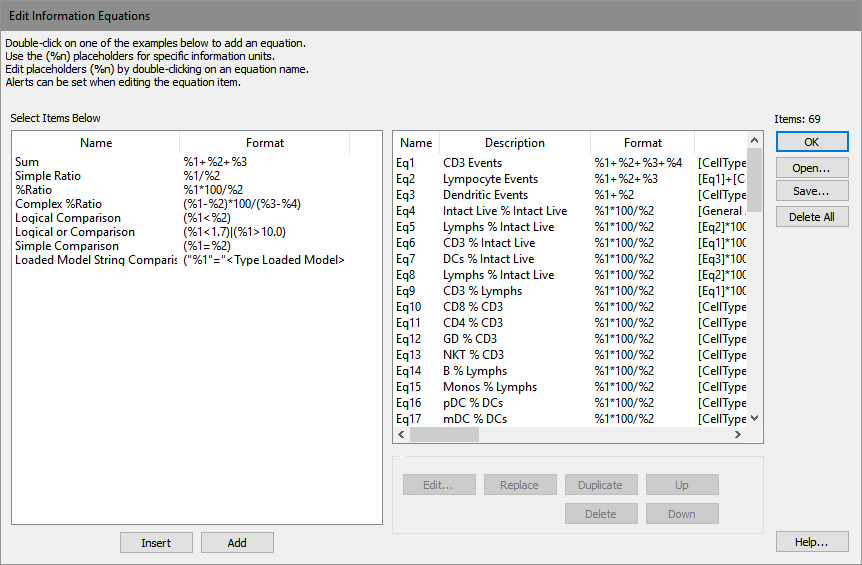
Anatomy of an Equation
Each equation has at least two fields that can be edited: Description and Format. In addition, the equation will have additional Properties that can be edited if the equation contains placeholders for some of its arguments (e.g. "%1"). The placeholders in an equation are used to reference keywords and other elements in the information system.
For example, let's examine the "Simple Ratio" equation in the example list. It has a Description, "Simple Ratio", which can be edited to be anything you want. To edit the description, click the mouse in the Description field, and edit the text.
The Format portion of the equation is where the equation expression is actually defined. The format can contain numbers and mathematical operators, but it can also contain special functions and placeholders. Function are found in the examples in the tree on the left of the dialog and listed in Equation Functions. Placeholders are the parts of the equation format that use the percent symbol (%) and a number.
In the example equation, the Format field uses two placeholders: %1 and %2. As the name implies, a placeholder identifies part of the equation that will be replaced by an element that GemStone has read from a data file or that it has computed. For example, with our Simple Ratio equation, if we want to create a ratio between the number of events in Stage 1 and Stage 2, we would tell GemStone to replace %1 with the Stage 1 events and %2 with Stage 2 events. This is done by selected the equation in the list and then clicking the Edit button.
In the Edit Equation dialog, right click the Information field to display a dialog of choices available to fill-in the placeholder. In our example, you would choose CellType1_Stage1_NumberOfEvents for %1 and CellType1_Stage2_NumberOfEvents for %2.
Each placeholder in an equation must be associated with an information field in this manner before the equation can be properly evaluated.
Suppose that you want to create a custom equation that multiplies the mean of a parameter in Stage1 by 4.56, and then divides by the mean of another parameter in Stage1. The Format field would look like this:
%1*4.56/%2
After typing the equation into the Format field, you would click the Edit button and select the statistics to fill-in for %1 and %2.
Suppose that you wanted to use a function in this equation, to take the square root of the result. The format field would look like this:
FSQRT(%1*4.56/%2)
For a list of functions, see Equation Functions.
If you want to... |
|
Add a new equation |
Select an example equation from the tree on the left and click Insert or Add to copy the example to the equation list. Edit the format field to define the equation expression. Then use the Edit button to select fields that will be evaluated by the equation (see Edit Equation). |
Edit placeholders in an equation |
Select the equation in the list on the right and click the Edit button. In the Edit Equation dialog, right click in the Information column to display the choice of items. Select the keyword or statistics you want from the choices shown. |
Remove an equation |
Select the equation in the list on the left and click the Delete button. |
Save a set of equations |
Click the Save button, navigate to a location on disk, and save the equation file. |
Open a set of equations |
Click the Open button, navigate to the location where the equation file was previously saved on disk, and open the equation file. |
See also: